Portal
Company Admin → NOC Monitor (same suite is available under Zone/POP Admin when your role can open those panels). Base path: /noc-monitor.
Prerequisites
- Company staff login with permission to change NOC Settings.
- At least one reachable MikroTik (API/management IP) you already use for billing/RADIUS.
- Optional: Telegram bot token + chat ID for the NOC group.
- Optional network ingress (when the API host is reachable): NetFlow UDP 2055, syslog UDP 5514, SNMP traps UDP 1620—only collected for companies that enable NOC.
Important
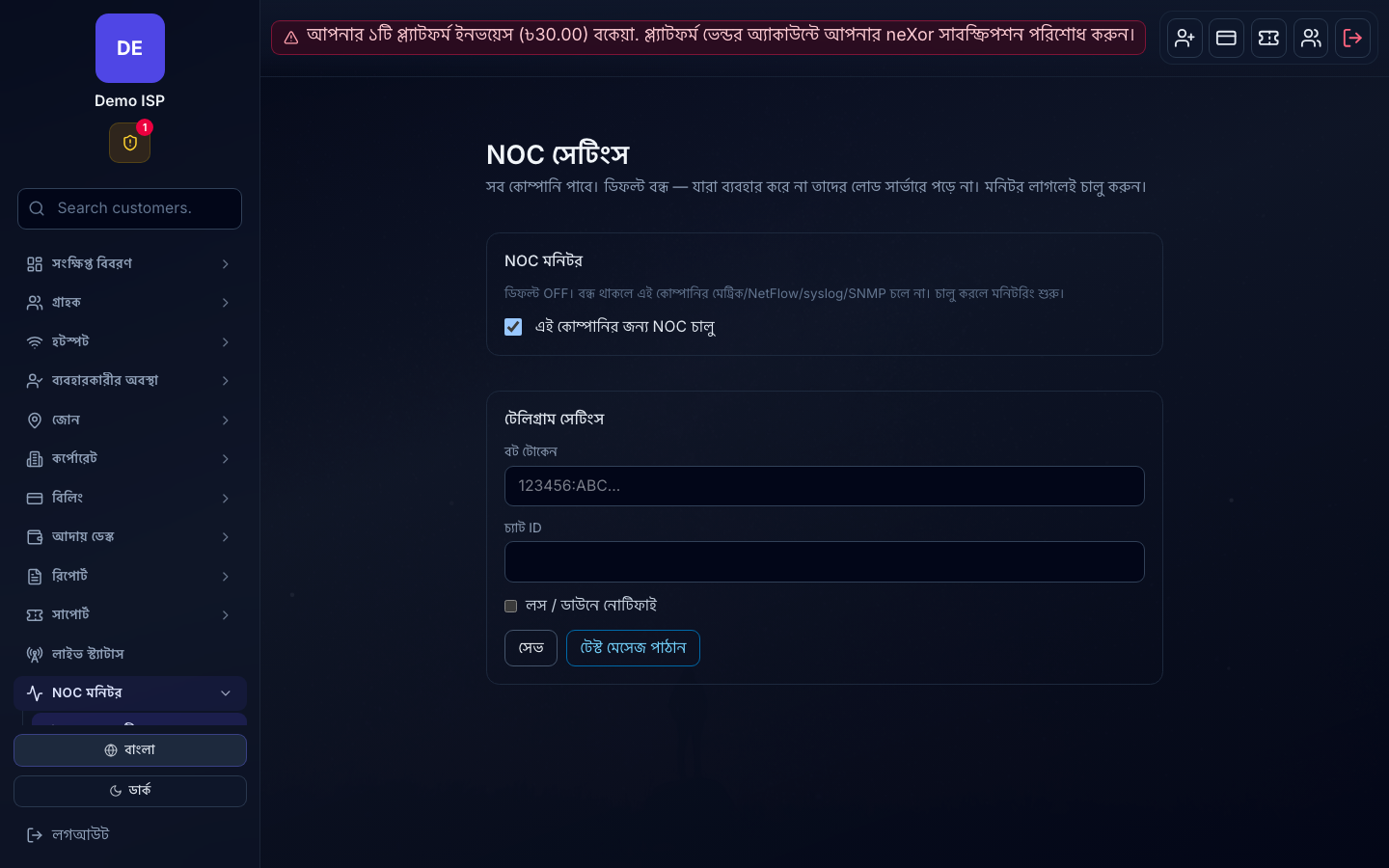
NOC Monitor is available to every company but stays OFF by default (company setting noc_enabled). Until you enable it, the sidebar shows only NOC Settings—no collectors, NetFlow, syslog or SNMP ingest run for that company.
1. Enable NOC for your company
- Open NOC Monitor → NOC Settings.
- Turn on the master Enable NOC Monitor checkbox (it saves immediately).
- After refresh, the full NOC sidebar appears (Dashboard, Topology, NetFlow, BGP, Alerts, …).
- Leave NOC off on tenants that do not need collectors—this keeps noise and ingest load off those companies.
2. Register MikroTik routers and target IPs
- NOC Monitor → MikroTik Routers → Add. Enter management IP, credentials and a clear label (core / edge / POP).
- Use Test / connect to confirm RouterOS API before relying on live charts.
- NOC Monitor → Target IPs → add ICMP/host probes for upstream gateways, critical NAS management IPs and any VIP customer CPE you want on the morning board.
- Optional: IP Pool library for quick picks when adding targets.
3. Connect Telegram alerts
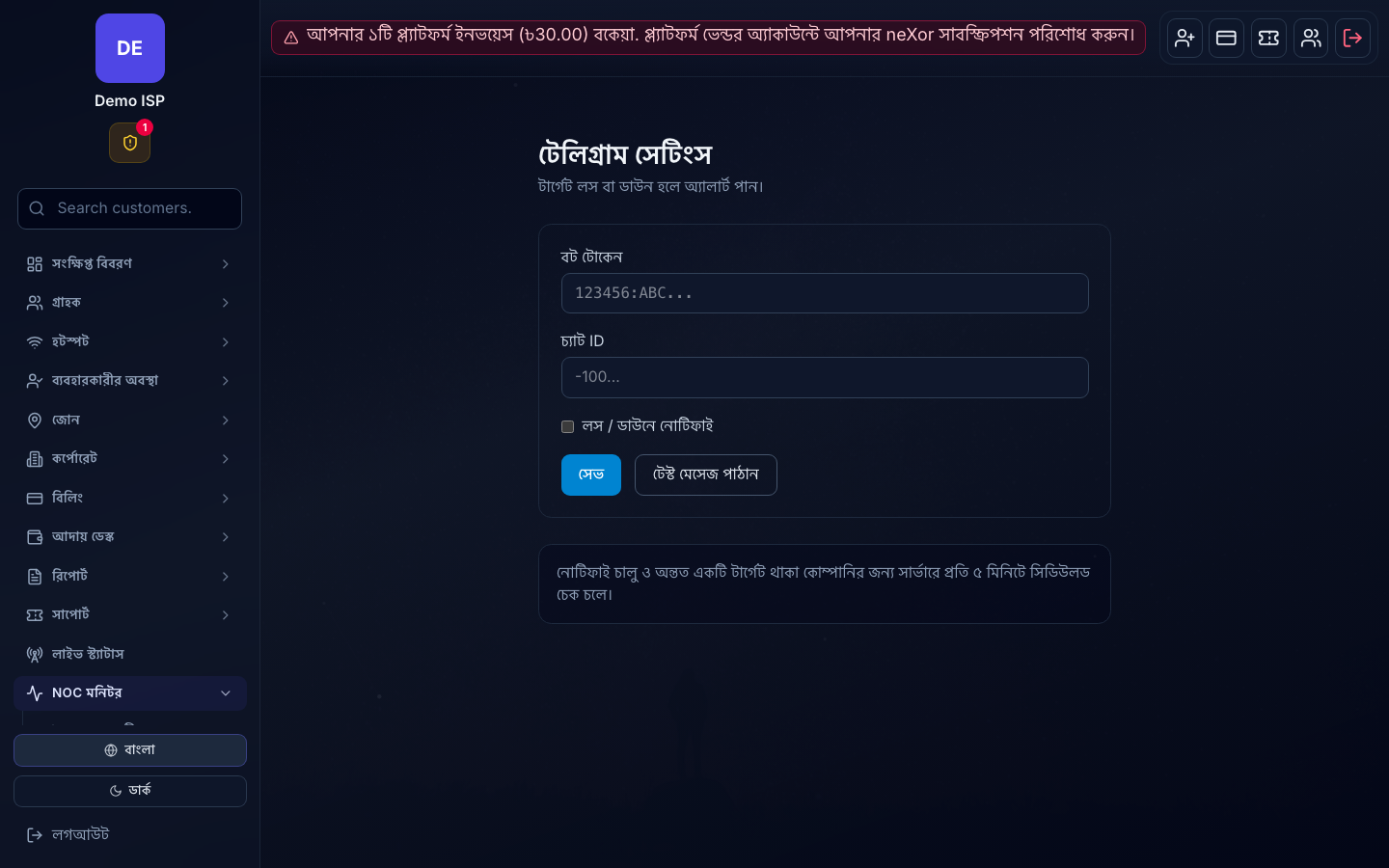
- NOC Monitor → Telegram Settings (also mirrored on NOC Settings).
- Paste bot token and chat/group ID. Send a test message.
- Enable notify-on-loss if you want scheduled ping loss to hit the channel.
- During planned work, use Maintenance windows so the channel is not flooded.
4. Daily ops views
- Dashboard — router health, bandwidth KPIs, open alerts and probe status.
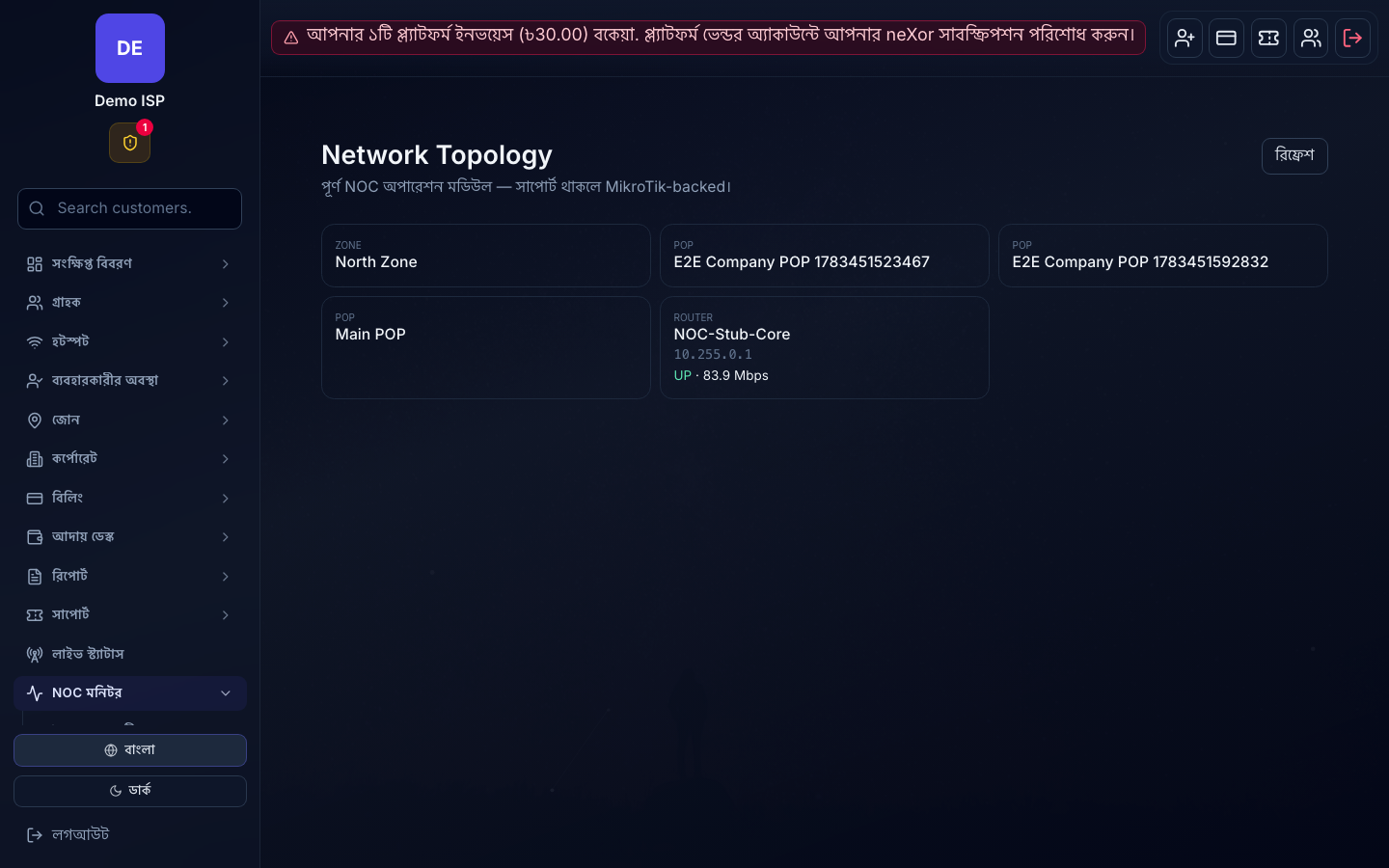
- Topology — map how devices hang together for triage.
- Looking Glass — ping / traceroute / DNS from a selected MikroTik.
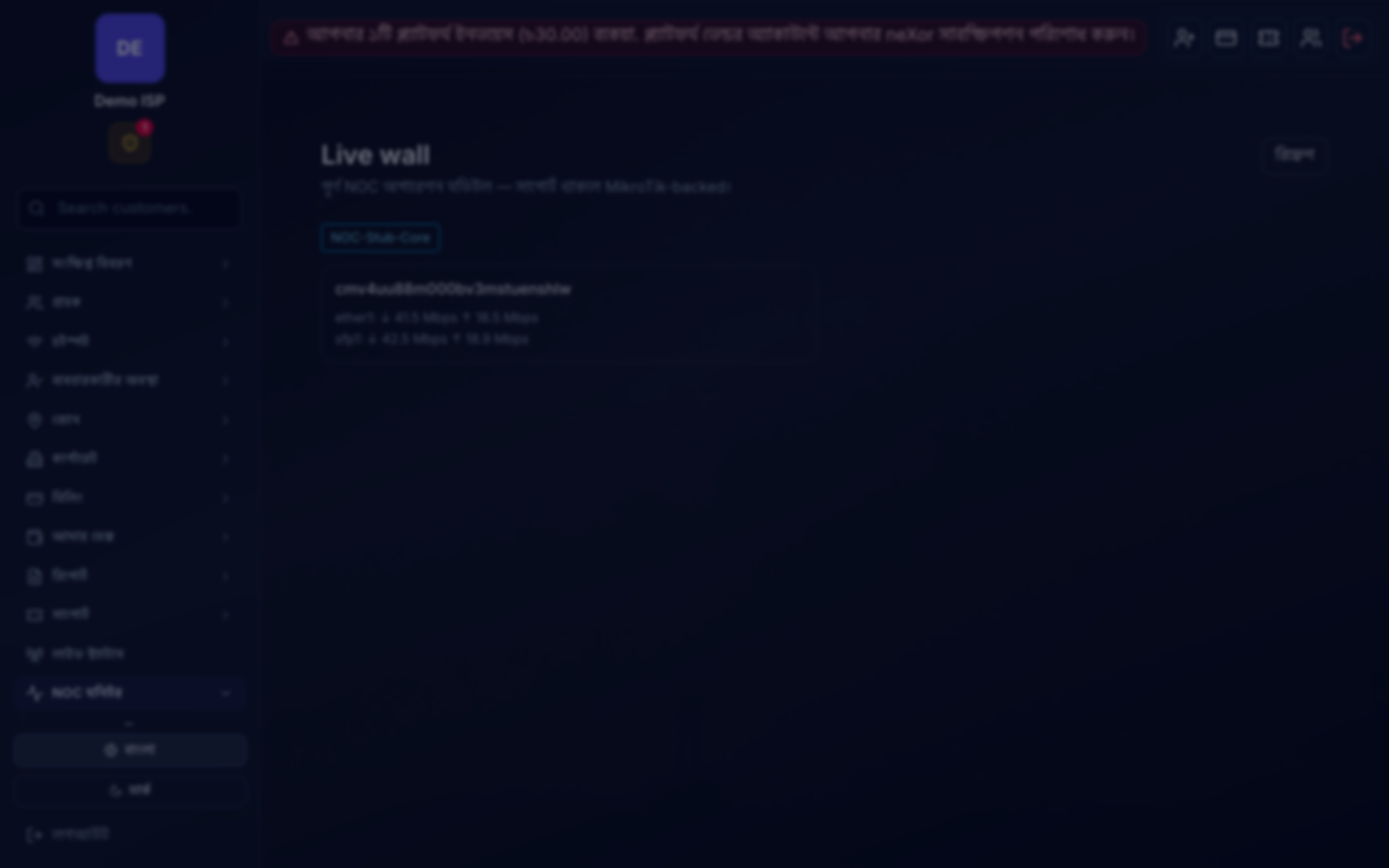
- Live wall — multi-router ~2s charts for the NOC screen.
- Interfaces & SFP — RX/TX, errors and optical power per interface.
- Queue Monitor — live MikroTik queue pressure.
5. Traffic intelligence
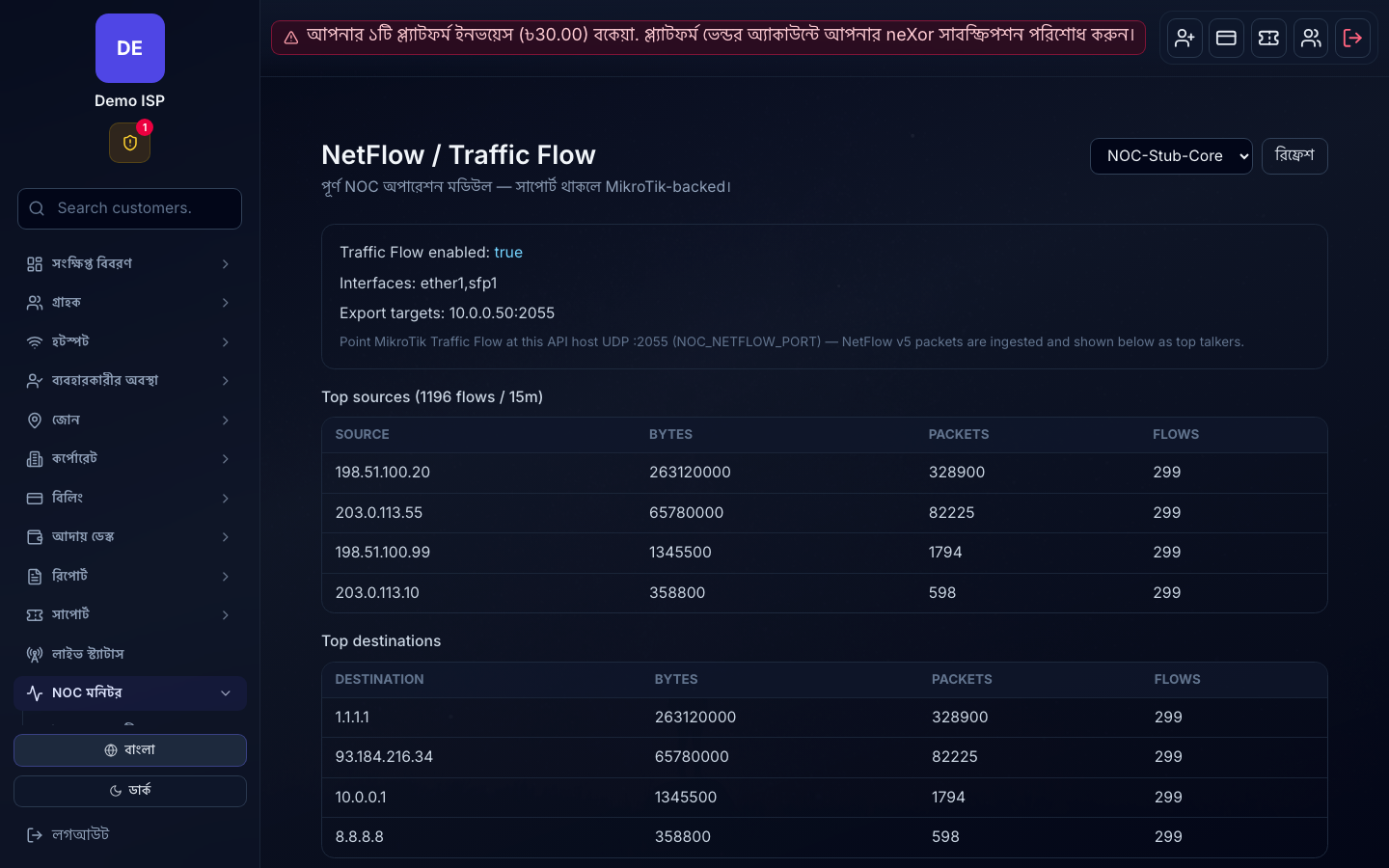
- NetFlow — top talkers from Traffic Flow / NetFlow v5/v9/IPFIX (point exporters at the neXor API host :2055 when NOC is on).
- NetFlow apps — port/app breakdown from the same flows.
- Online heat-map — where online density concentrates.
- Link capacity — utilization and 95th-percentile style capacity views.
- Customer impact — which subscribers sit behind a flapping link or device.
6. Routing, path and websites
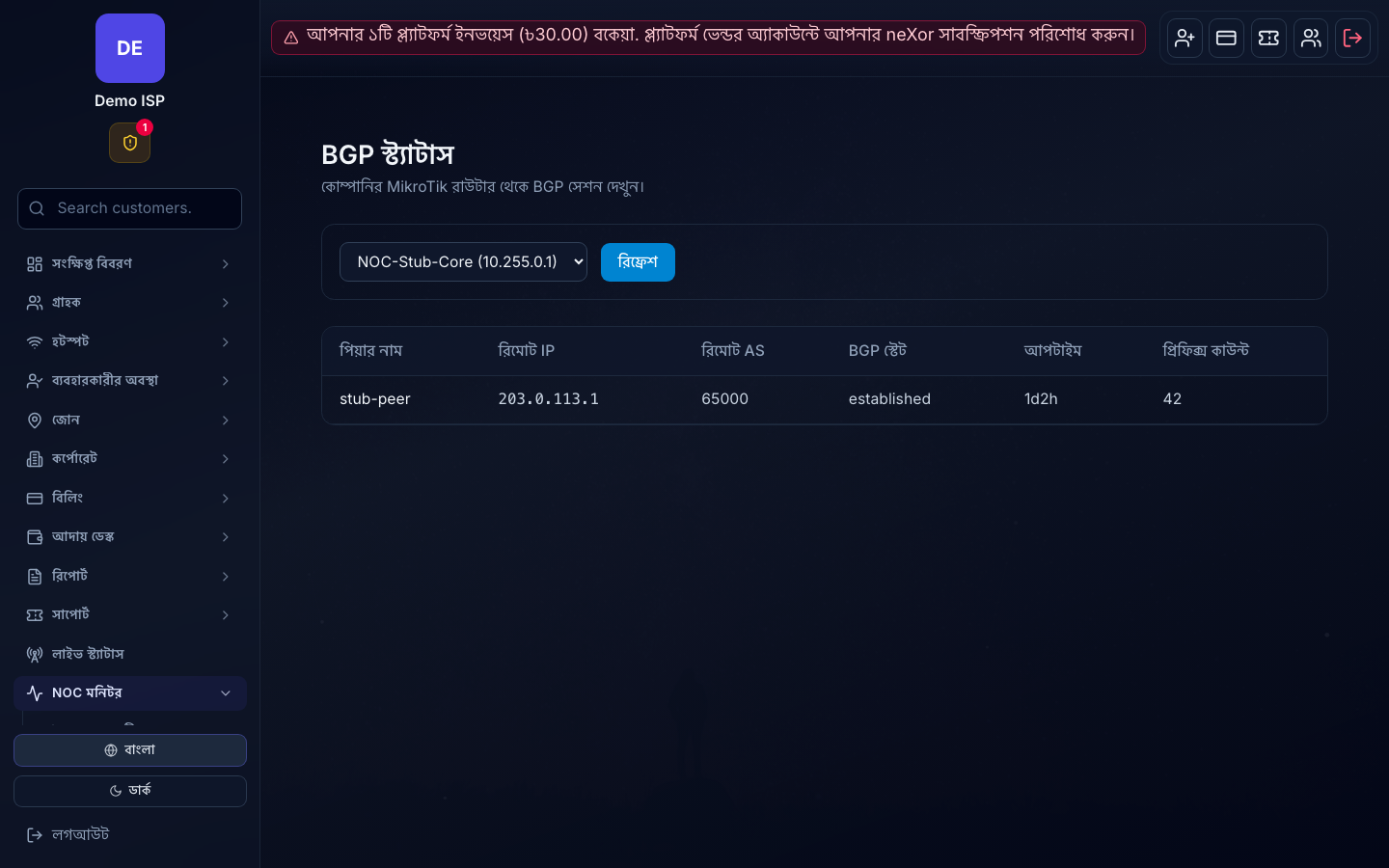
- BGP Status — live sessions from a selected MikroTik.
- BGP uplink watch — uplink/BGP watch insights for morning checks.
- Path probes — latency/path matrix between important points.
- Website Monitor — HTTPS/service URL checks for portals and payment hosts.
- VPN Manager and DNS — VPN session/config and DNS ops via router-ops where configured.
7. Telemetry, config and history
- Syslog — search ingested router syslog (UDP 5514 when NOC is on).
- SNMP traps — traps plus OLT/device inventory hooks (UDP 1620).
- Config drift — compare live RouterOS against backups.
- Config backups — .rsc export archive with checksum/retention.
- Time Machine — historical router state at a chosen timestamp.
- Ping Logs — history of NOC ping checks.
8. Security, alerts and reporting
- Security — firewall and security event views.
- Mitigation — review/approve DDoS mitigation proposals.
- DDoS / SLA (anomaly) — bandwidth/PPS anomalies, guidance and short-window SLA.
- Alert Rules — define when incidents fire.
- Alerts & Incidents — acknowledge and resolve.
- Maintenance — silence windows for planned work.
- Reports — SLA reports, CSV export and complaint draft helpers.
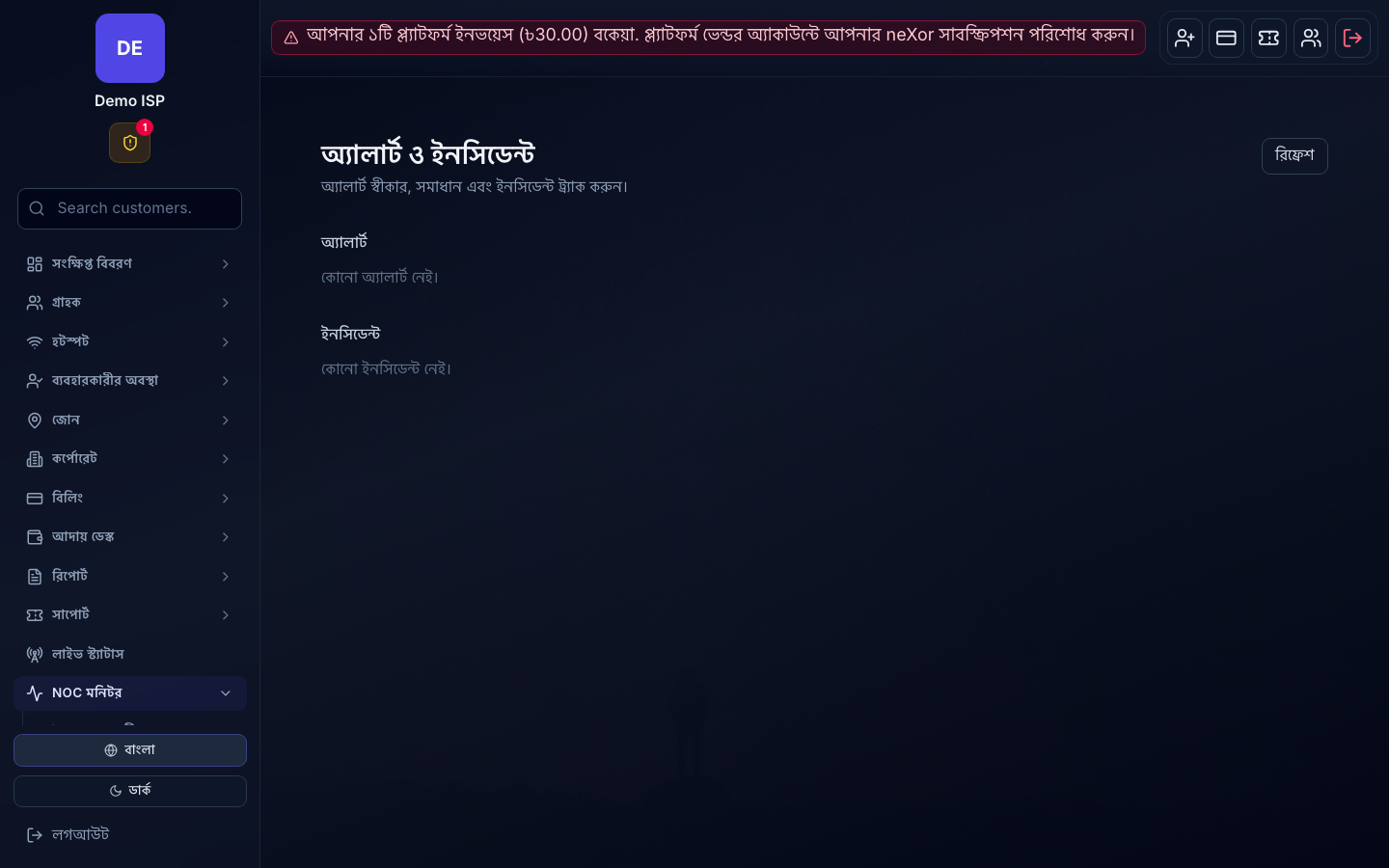
Module map
- NOC Settings · Dashboard · Topology · Looking Glass · Interfaces & SFP · Queue Monitor
- NetFlow · NetFlow apps · BGP Status · BGP uplink watch · Live wall · Online heat-map · Link capacity · Customer impact
- Syslog · SNMP traps · Path probes · Config drift · Website Monitor · VPN Manager · DNS · IP Pool
- Security · Mitigation · DDoS / SLA · Alerts & Incidents · Alert Rules · Maintenance
- Time Machine · Config backups · Reports · Target IPs · MikroTik Routers · Telegram Settings · Ping Logs
Verify
- After enable, sidebar lists the full module set (not Settings alone).
- A registered router shows health on Dashboard / Live wall.
- A test target failure (or test Telegram) reaches the NOC chat, then restores cleanly.
- Planned maintenance silences noise; alerts resume after the window.
If it fails
- Only Settings visible → NOC is still off; enable under NOC Settings and refresh.
- 403 / empty collectors → feature still disabled for that company, or staff lacks permission.
- No Telegram → wrong bot token/chat ID, or the bot was never started in the group.
- False downs → probe interval too aggressive, ICMP blocked, or wrong management IP.
- No NetFlow/syslog/SNMP data → exporters not pointed at the API host, wrong UDP ports, or NOC still off (ingest is company-scoped).