Portal
Company Admin panel (not the Zone or POP panel). URL is usually your company subdomain or the path issued during onboarding.
Prerequisites
- Company staff login (owner/manager role).
- Company legal name, support phone, billing address and logo (PNG/SVG preferred).
- Bangladesh timezone Asia/Dhaka unless your ops team uses another.
1. Sign in and land on Dashboard
- Open the Company Admin URL and sign in with your staff email/username.
- Confirm the sidebar shows company-level menus (Subscribers, Billing, Network, Zones, Support).
- If you see only zone-scoped menus, you logged into the Zone panel—switch to Company Admin.
2. Configure company profile
- Go to Settings → Company profile (or Company profile from the sidebar).
- Set legal/display name, contact email, support phone and address.
- Upload logo — it appears on company sidebar, zone login branding and customer portal header.
- Save, then hard-refresh the browser to confirm the logo and name updated.
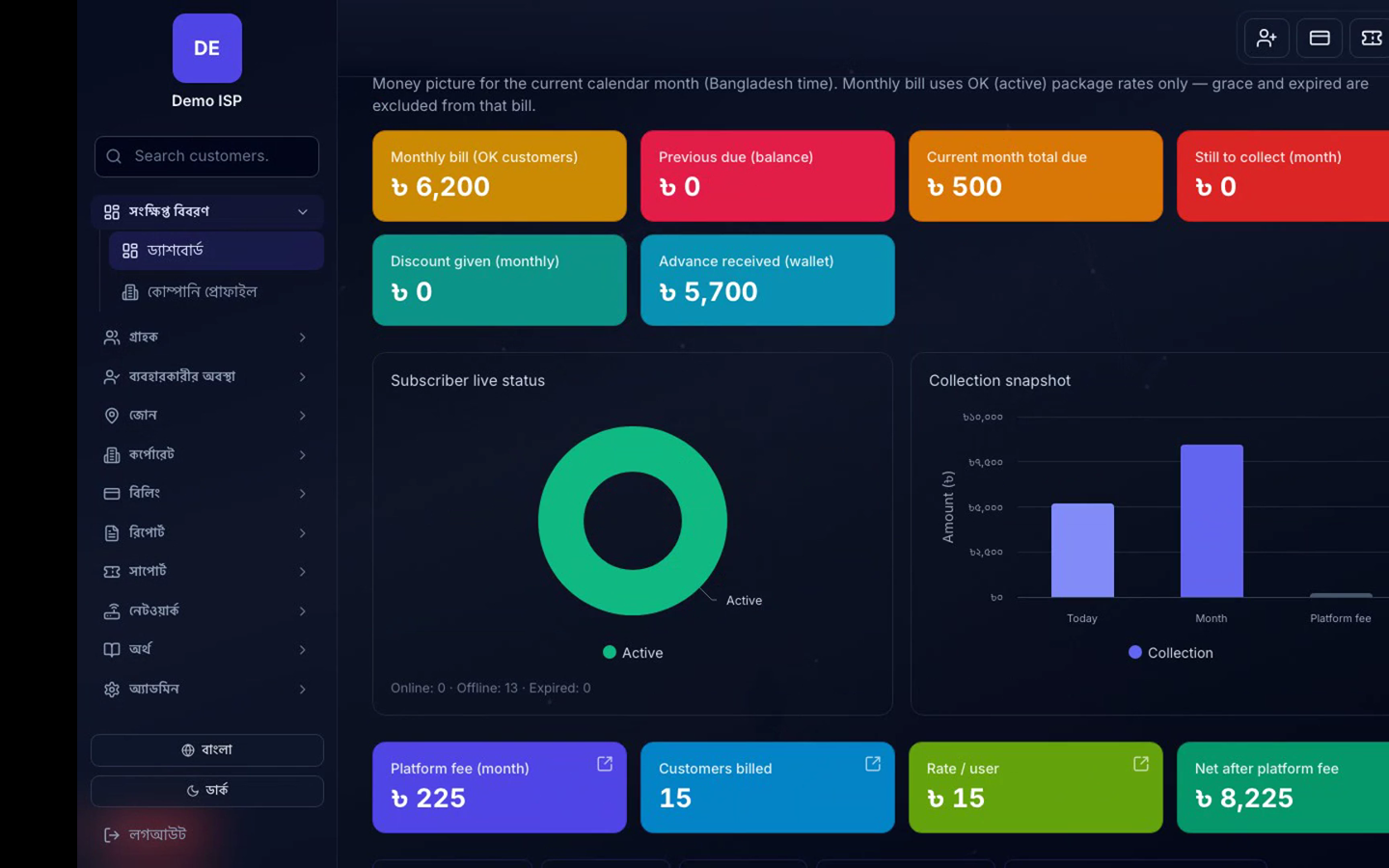
3. Dashboard operating view
- Open Dashboard.
- Read Active / Online / Offline / Grace / Expired subscriber counts.
- Check today/month collections, dues and open tickets.
- Use each KPI as a drill-down into Customers, Payments or Tickets—do not treat the dashboard as a static report only.
Verify
- Logo visible in the left sidebar.
- Company name matches legal branding.
- Online count roughly matches your MikroTik/RADIUS expectation for this time of day.
Common mistakes
- Editing Zone panel settings and expecting company-wide branding to change.
- Leaving an old logo cached—clear browser cache or use a new filename.
- Ignoring Offline vs Active gap (often RADIUS/NAS or expiry issues).